Documentation Mercado Libre
Check out all the necessary information about APIs Mercado Libre.
Documentation
Mercado Libre MCP Server
The Model Context Protocol (MCP) is an open protocol that standardizes the connection of artificial intelligence models with different data sources and tools. The Mercado Libre MCP Server provides utilities for developers to easily interact with Mercado Libre APIs and resources using natural language, simplifying tasks and product integrations.
Prerequisites
Before getting started, make sure you have the following:
| Requirement | Description |
|---|---|
| MCP Client | A compatible client (for example, Cursor, Windsurf, Cline, Claude Desktop, ChatGPT, etc). |
| Mercado Libre account | An active Mercado Libre account. Authentication is handled via OAuth 2.0 directly from the MCP client. |
Authentication
The Mercado Libre MCP Server uses OAuth 2.0 as its authentication and authorization method. This approach aligns with industry standards and eliminates the need to manually manage Access Tokens.

Installation and configuration
3.1 Cursor
To connect to our Mercado Libre MCP, you first need to connect with the client that best fits your integration. Check the step-by-step instructions based on your client type.
In Cursor, you can click the button below or follow the steps manually.

To connect to the Mercado Libre MCP server from Cursor manually, follow these steps:
Cursor Settings > Tools & Integrations > New MCP ServerThis will open a tab where you can view and configure available MCP servers. In the configuration, make sure to include the following JSON block to connect to the MCP server:
JSON:
{
  "mcpServers": {
    "mercadolibre-mcp-server": {
      "url": "https://mcp.mercadolibre.com/mcp"
    }
  }
}3.2 Windsurf
To connect to the Mercado Libre MCP server from Windsurf, follow these steps:
Cascade > MCP Servers > ConfigureJSON:
{
  "mcpServers": {
    "mercadolibre-mcp-server": {
      "serverUrl": "https://mcp.mercadolibre.com/mcp"
    }
  }
}
3.3 Other IDEs
Open the IDE settings and look for the JSON file related to MCP servers.
JSON:
{
  "mcpServers": {
    "mercadolibre-mcp-server": {
      "command": "npx",
      "args": [
        "-y",
        "mcp-remote",
        "https://mcp.mercadolibre.com/mcp"
      ]
    }
  }
}
Connecting to the MCP Server
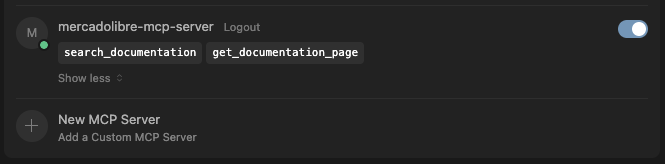
- Establish the remote connection from your preferred client (example: Cursor).
- When connecting for the first time, the OAuth authentication flow will automatically open in the browser. Log in with your Mercado Libre account and authorize access.
- Make sure the MCP server is available and correctly configured in your client.
- If it doesn't appear, check the configuration and reload the MCP server list.
Available tools
The Mercado Libre MCP Server exposes tools to facilitate integration and querying of relevant information.
search_documentation
Enables searching for specific terms or key concepts throughout the technical documentation for Mercado Libre developers.
- query: Keywords to search within the documentation (Required)
- language: Language of the documentation to query (e.g.: en_us, es_ar, pt_br) (Required)
- siteId: Country ID to filter results (e.g.: MLA, MLB, MLM, etc) (Optional)
- limit: Maximum number of results to return (Optional)
- offset: Number of results to skip (Optional)
get_documentation_page
Retrieves the full content of a specific documentation page, useful for accessing detailed specifications or use cases.
- path: Path of the page to retrieve (Required)
- language: Language of the documentation to query (e.g.: en_us, es_ar, pt_br) (Required)
- siteId: Country ID to filter results (e.g.: MLA, MLB, MLM, etc) (Optional)
Use cases
6.1 Search documentation from your IDE
The tools are not used directly by the user or developer, but by the Agentic IDE. For example:
The search_documentation tool allows the Agentic IDE to search for key terms within all official Mercado Libre documentation and retrieve the most relevant endpoints or routes for the queried context.
Then, with the get_documentation_page tool, the Agentic IDE accesses the full content of the routes identified in the previous step, allowing it to obtain specific information and concrete use cases directly from the documentation.
In this way, the IDE automates the querying and navigation of documentation, enabling developers to receive contextualized and precise answers without having to search manually.
6.2 Generate integration code
In addition to querying documentation, the MCP tools are used by the Agentic IDE to generate code and assist with product integration in your projects.
For example, you can ask the assistant to review the documentation for the product you want to integrate and identify the steps needed to complete the integration. The MCP Server provides the relevant context (including code examples and technical documentation), which the Agentic IDE uses to suggest or even directly apply the required changes to your project.
In this way, the IDE automates the querying, analysis, and implementation of integrations, streamlining the developer's work and accelerating the development process.
You can request recommendations to implement specific integrations, for example:
Errors and solutions
7.1 OAuth authentication flow error
If when trying to connect, the application stays in "Loading Tools" state indefinitely or fails to establish a connection to the server, there may be a problem with the authentication flow.
Possible causes:
- The OAuth flow was not completed correctly (the browser window was closed before authorizing).
- The session credentials have expired.
- The MCP client does not support the required OAuth flow. Make sure to use an updated version of the client.
- The MCP server URL is misconfigured.
Suggested solutions:
- Disconnect and reconnect the MCP server to restart the authentication flow.
- Make sure to complete the authorization flow in the browser before closing the window.
- Verify that the configured URL is exactly
https://mcp.mercadolibre.com/mcp. - Update your MCP client to the latest available version.